
Manage tickets
Create, filter and edit tickets, and everything in a ticket page: criteria, subtasks, time, attachments, links and history.
- Plan
- All plans
- Required permission
- Tickets › CreateDefault: Product Owner, Scrum Master, Business Analyst, plus the project owner and admins.
- Required permission
- Tickets › EditDefault: Product Owner, Scrum Master, Tech Team, Business Analyst, Quality Analyst, plus the project owner and admins.
The ticket list
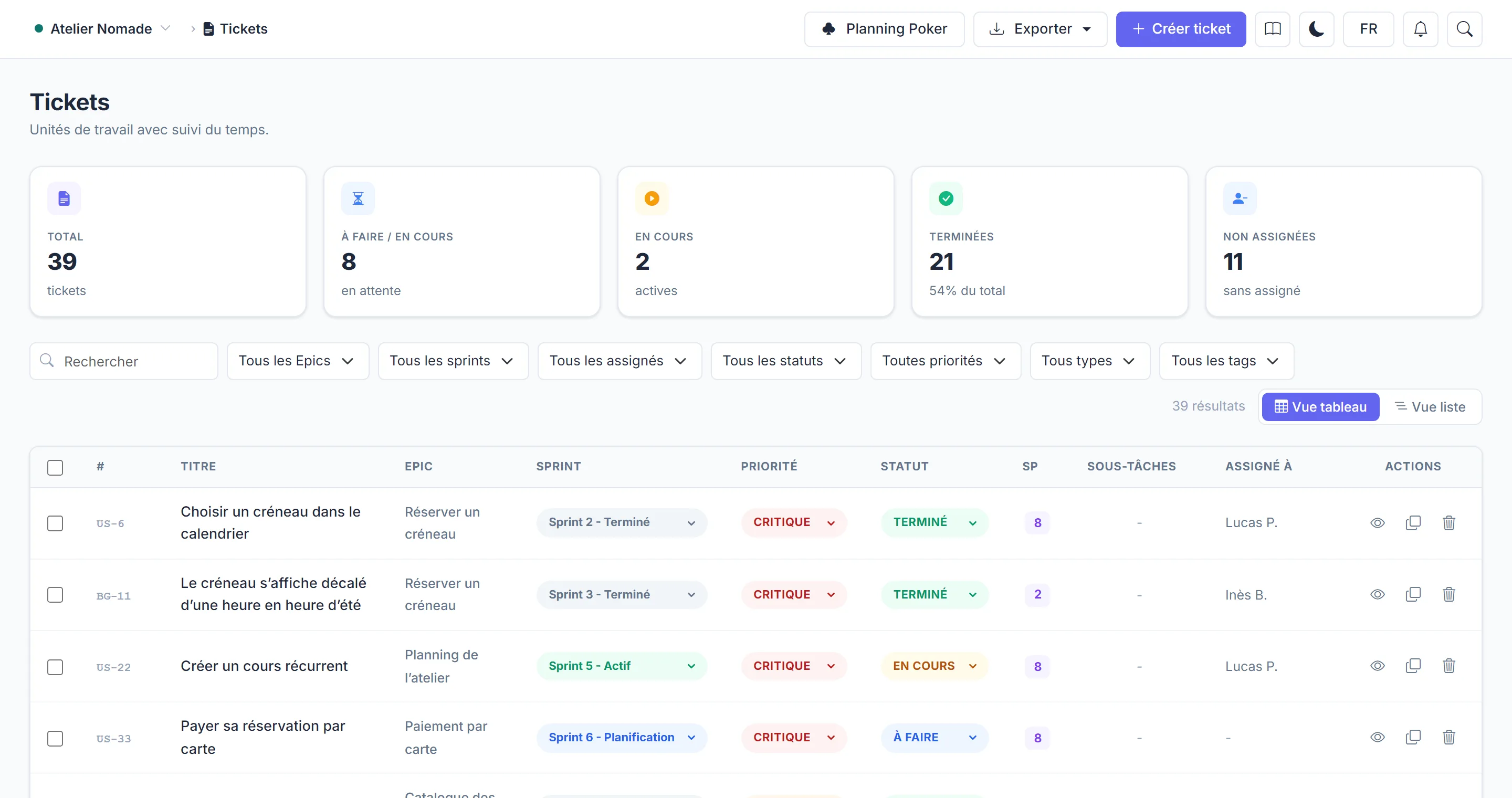
The Tickets page shows the project's whole backlog, in List view or Table view. Filters (status, sprint, epic, tag, person…) are remembered for each project. Status, priority and sprint can be changed directly in the list.
Tick several tickets to edit them at once: status, priority, sprint, epic, assignee, tags. The same selection can be sent to planning poker or deleted.
Click Create ticket to add a ticket: title, description, epic, type, priority, story points and acceptance criteria.
The ticket page
Open a ticket to see its full page:
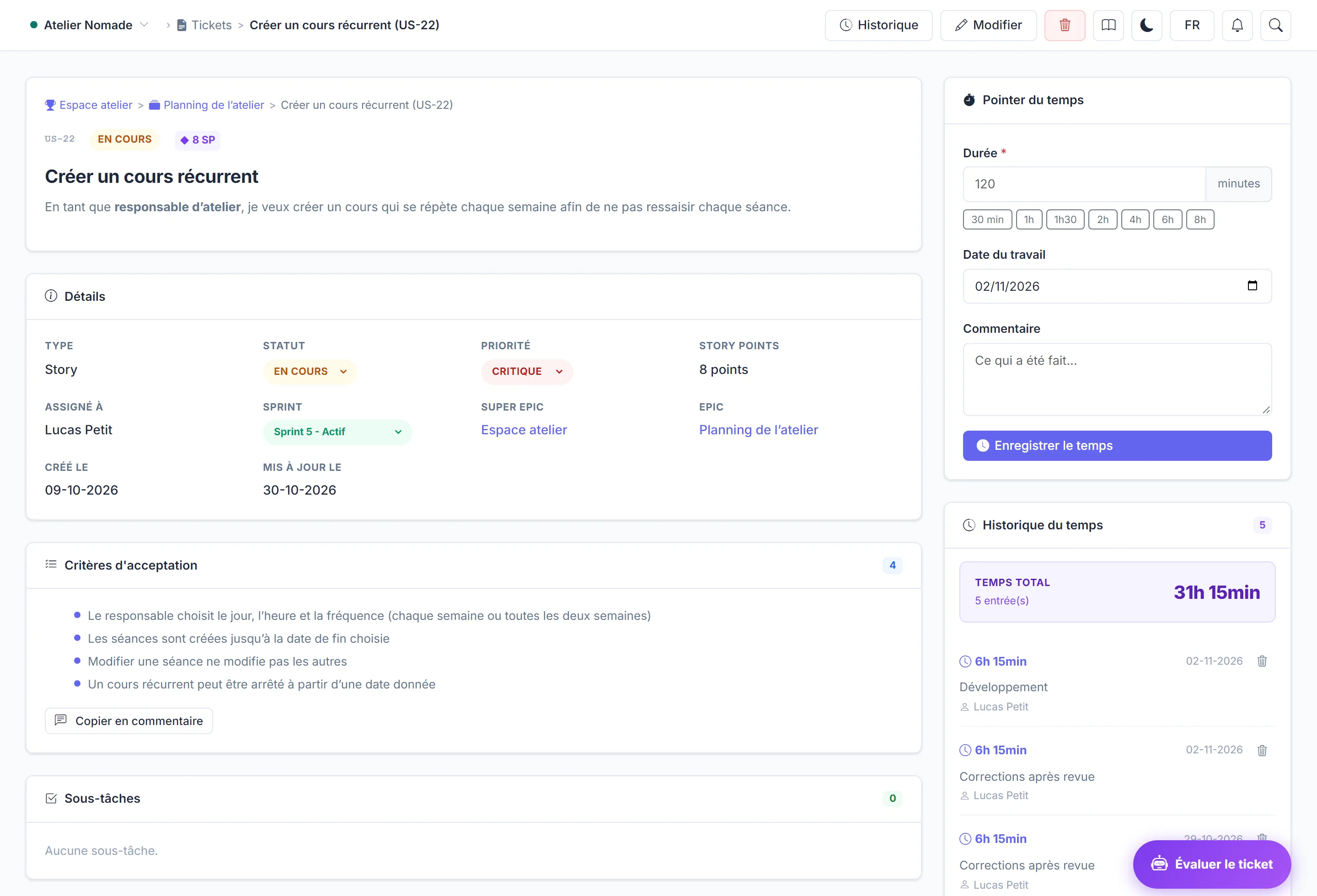
- Acceptance criteria: what must be true for the ticket to be accepted. Generate with AI proposes some from the title and description.
- Subtasks: the technical breakdown, ticked off as you go. AI can suggest them too.
- Track time: duration, work date and a comment. Logged time feeds the project's actual cost in Finance.
- Attachments: drag files in, or paste a screenshot directly into the editor. 10 MB maximum per file.
- Links: "blocks", "blocked by" and other relations between tickets.
- Discussion: the team's comments, most recent first.
- History: every change, with its author and date.
AI features use credits: see AI credits.
Editing together
If a colleague opens the same ticket, you see their changes live and they see yours. A banner shows who is editing the ticket with you.
Evaluate a ticket's quality
Evaluate ticket asks AI for a quality score (clarity, criteria, breakdown) and recommendations you can apply one by one. See Improve your tickets with AI.
Estimate as a team
The Planning Poker button on the Tickets page opens a collective estimation session. See Estimate with planning poker.
A status change refused?
The project may have transition rules. See An action is refused.