
Create a project
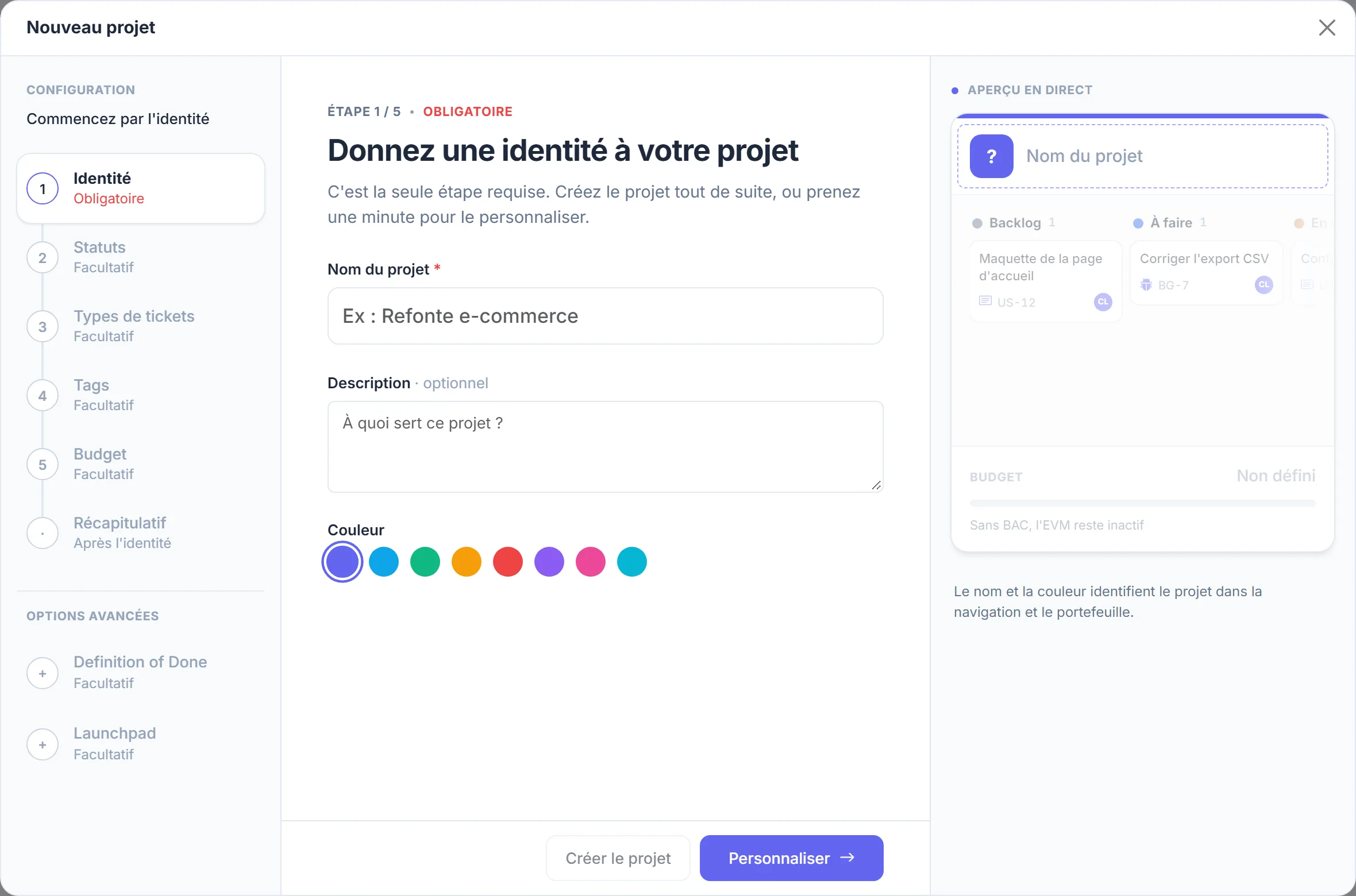
The five-step project wizard, only one of which is required: identity, statuses, ticket types, tags and budget.
Open the wizard
In My projects, click New project. The wizard opens on the Identity step, the only required one: give the project a name (and a description if you like), and you can create it right away. Everything else can also be set later in Settings.
You become the project owner: you have every permission, and you can give administrator access to other members.
The five steps
- Identity: the project's name and description.
- Statuses: the columns of your board. Start from the Default or Simple template, then rename, reorder or add statuses. Backlog and Done are always there. At least one status must be in the "Done" category: it is what marks a ticket as delivered.
- Ticket Types: enable the ones your team uses (Story, Bug, Task, Spike…). The type's abbreviation prefixes each ticket number: US-12, BG-7. Story remains the default type.
- Tags: cross-cutting labels to filter and group tickets, for example frontend or client. Type, then press Enter.
- Budget: the budget at completion (BAC), the reference for financial tracking, and the contingency reserve (10% by default, included in the amount).
The Summary screen recaps your choices before creation.
Advanced options
Two optional settings follow the summary:
- Definition of Done: the criteria a ticket must meet to be considered done. Five criteria are suggested by default; they are carried into every sprint planning.
- Launchpad: tick Open the Launchpad after creation to have AI generate a full backlog as soon as the project exists. See Generate a backlog with the Launchpad.
The project quota counts every project you take part in
The free plan lets you take part in two projects, counting the ones you created and the ones you were invited to. If creation is refused, leave a project or move to a higher plan. See Plans and capabilities.
Next
Invite your team (Invite your team), then fill the backlog: by hand from Tickets, with AI through the Launchpad, or by importing a file (Import a backlog).