
Roles and permissions: who can do what in a project
What each role can do by default, how Manifst decides whether an action is allowed, and how to adapt a project's permissions.
Three things decide what you can do
When a button is missing or an action is refused, one of these three rules is the cause.
- Your place in the project. The project owner and admins have every permission, whatever their Scrum role. They are also the only ones who can change other people's permissions.
- Your Scrum role in this project. For other members, the Scrum role opens or closes each action: Product Owner, Scrum Master, Tech Team, and so on. The same account can have a different role in each project.
- Your subscription plan. Some capabilities (governance, connectors, exports, portfolio…) depend on your own plan, not on the project owner's. See Plans and capabilities.
A permission does not unlock a plan capability
A Starter member can hold the "Manage risks" permission in a project run by a Team subscriber: they can read the risk register, but cannot change it until their own account is on a plan that includes governance.
Permissions are specific to each project
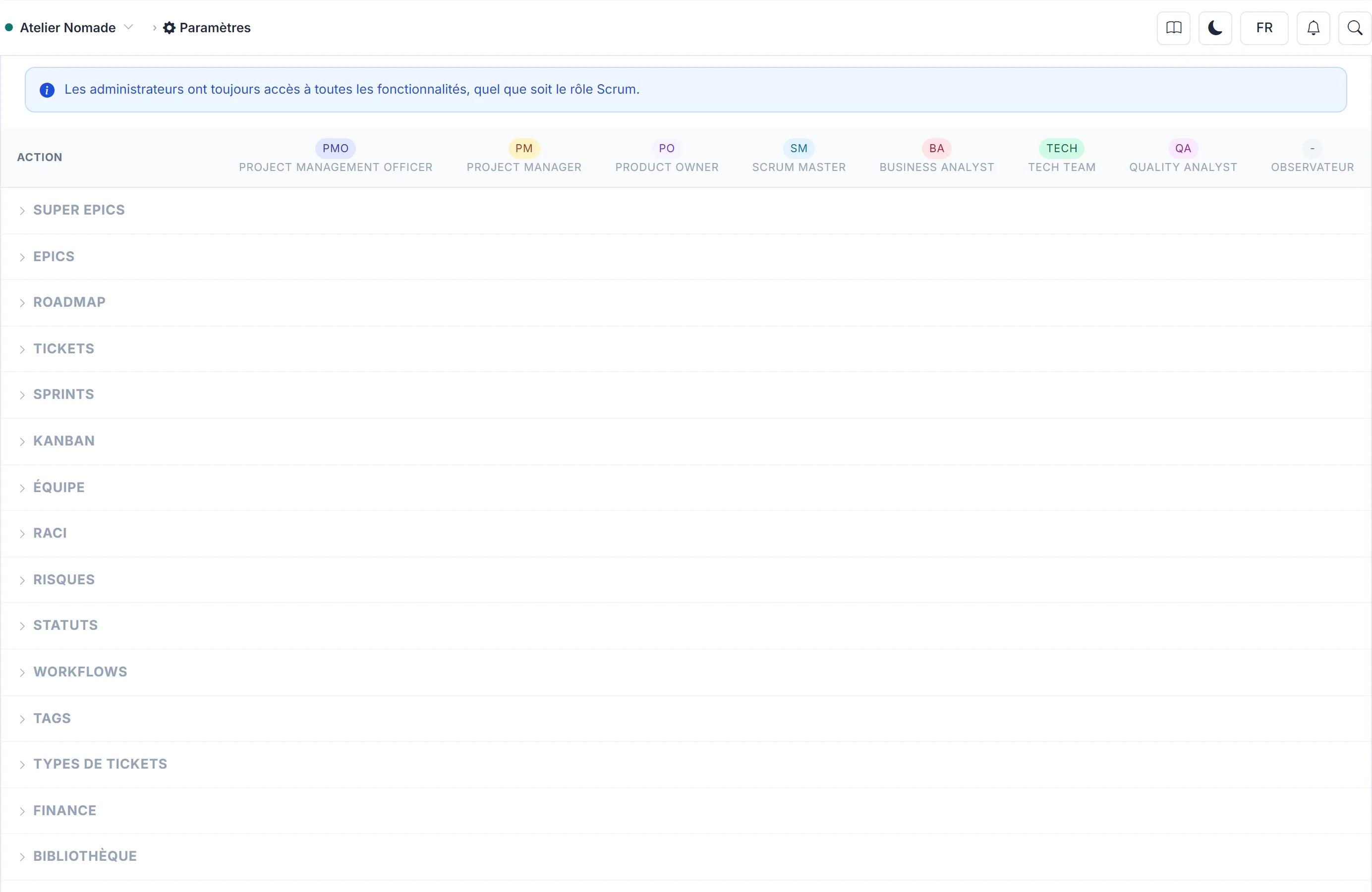
When it is created, each project receives a copy of the default permissions shown below. Changing them in one project does not affect the others.
In each group, the first row, Access page, governs all the others: without it, the page does not appear in the menu, and the group's other actions cannot be granted to that role. For Finance, the Finance group's "Access page" permission opens the page and the dashboard's budget blocks.
Default permissions
This table is produced from the product itself: it shows the permissions a new project receives. An existing project's permissions may have been adapted by its admins. In particular, in projects created before 3 November 2026, only the Scrum Master manages sprints by default; an admin can open it to the Product Owner in Settings › Access.
| Required permission | Product Owner | Scrum Master | Tech Team | Project Manager | Business Analyst | Quality Analyst | Project Management Officer | Observer |
|---|---|---|---|---|---|---|---|---|
| Super Epics | ||||||||
| Access page | ||||||||
| Create | · | · | · | · | · | |||
| Edit | · | · | · | · | · | |||
| Delete | · | · | · | · | · | |||
| Epics | ||||||||
| Access page | ||||||||
| Create | · | · | · | · | · | |||
| Edit | · | · | · | · | · | |||
| Delete | · | · | · | · | · | |||
| Tickets | ||||||||
| Access page | ||||||||
| Create | · | · | · | · | · | |||
| Edit | · | · | · | |||||
| Delete | · | · | · | · | · | |||
| Run QA reviews | · | · | · | · | · | |||
| Sprints | ||||||||
| Access page | ||||||||
| Create | · | · | · | · | · | · | ||
| Edit | · | · | · | · | · | · | ||
| Delete | · | · | · | · | · | · | ||
| Run the daily stand-up | · | · | ||||||
| Run the Sprint Review | · | · | · | · | · | · | ||
| Finance | ||||||||
| Access page | · | · | · | · | · | |||
| Planning Poker | ||||||||
| Start a session | · | · | · | · | · | |||
| Vote (estimation) | · | · | · | · | · | · | · | |
| RACI | ||||||||
| Access page | ||||||||
| Manage RACI matrix | · | · | · | · | · | |||
| Kanban | ||||||||
| Access page | ||||||||
| Team | ||||||||
| Access page | · | · | · | · | · | · | · | · |
| Library | ||||||||
| Access page | ||||||||
| MyDoc | ||||||||
| Access page | ||||||||
| Create a space | · | · | · | |||||
| Roadmap | ||||||||
| Access page | ||||||||
| Risks | ||||||||
| Access page | ||||||||
| Manage risks | · | · | · | · | · | |||
| Workflows | ||||||||
| Manage transition rules | · | · | · | · | · | · | ||
| Tags | ||||||||
| Manage tags | ||||||||
| Statuses | ||||||||
| Manage statuses | · | · | · | · | · | · | ||
| Ticket types | ||||||||
| Manage ticket types | · | · | · | · | · | |||
| AI assistants & API | ||||||||
| Use an AI assistant or the API | · | · | · | · | · | · | · | · |
Four defaults that surprise people
- Team: the page is only open to the owner and admins. It shows members' daily rates.
- AI assistants & API: no role has it by default. For a member to work on the project from Claude, ChatGPT, Le Chat or an API key, an admin must grant this permission.
- Planning poker: only the Tech Team role votes by default. The Product Owner, the Scrum Master and the Project Manager start sessions without voting.
- Finance: only the Product Owner, the Project Manager and the PMO see the budget by default.
Change a member's Scrum role
- Open the project's Team page.
- Edit the member and choose their Scrum Role.
- Save: their permissions follow their new role immediately.
Adapt a role's permissions in a project
- Open Settings, then the Access tab in the "This project" group.
- In Role permissions, tick or untick each role's actions. An action can only be ticked if the role already has access to the group's page.
- Click Save.
An "Observer" role for stakeholders
The Observer role can read most pages without any write action: the right choice for a sponsor or a client following progress.